


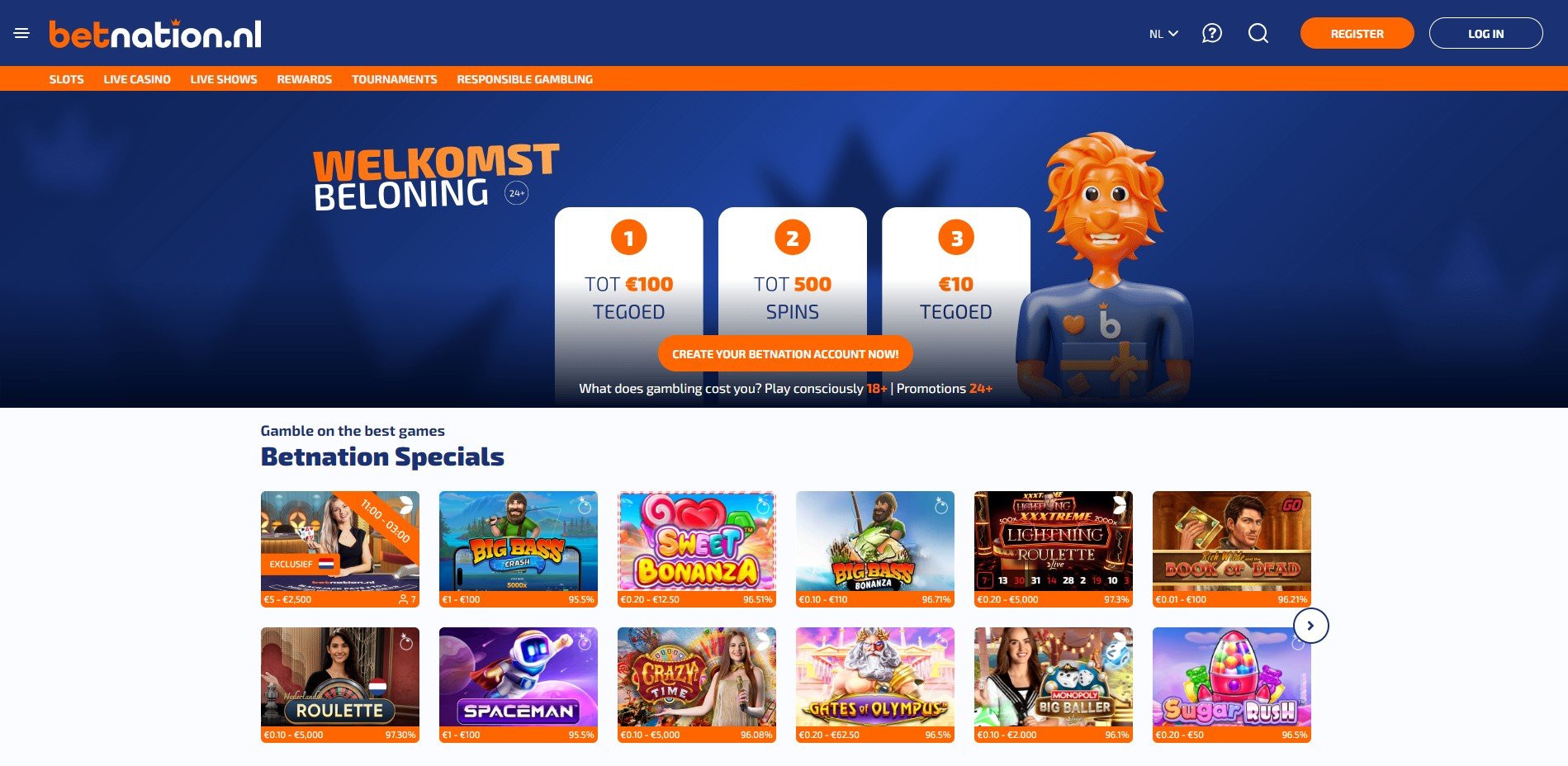
The Betnation Casino app is a handy account assistant, not a cosmetic shortcut https://betnationcasino.com/app/. For users in the Netherlands, the transaction history is usually the most valuable part — a chronological record of deposits, withdrawals, bonus amounts, and corrections that enables you verify your balance and notice anything irregular. This article guides you through how the app manages that log, how to download and use it reliably from the Netherlands, which devices function, and what to check when an record appears incorrect. We rely on checkable details, not promises about offers or specific processing durations, because those details change and you should invariably check them in your dashboard or on the official Betnation Casino website. By the conclusion, you’ll know where to locate your records, how to read its conditions, and when to transfer to the computer website or contact assistance.
The scope of the In-App Transaction History Shows
The transaction history is the account ledger that records every balance change. You’ll see deposits, withdrawal requests and their outcomes, bonus credits or deductions, and manual adjustments from support. Each entry carries a timestamp, amount, payment method (where relevant), and a status — pending, completed, failed, or cancelled. We built it so Dutch users can address three practical questions: what happened, when, and is it still moving through review or payment? It’s not a tax statement or a bank record replacement; it’s an operational view of your casino account. If an entry is pending, the amount might already appear in your available balance or might still be reserved, depending on the type. Always match the app entry with the cashier confirmation, and for withdrawals, with your payment provider’s record before you decide something’s wrong.
Supported Devices and OS Checks
The app operates on current smartphones and tablets, but some devices manage it the identically. For Android, you need a phone or tablet that can install apps from the Play Store or, if available, allow a signed direct download. Older models with limited storage, obsolete security patches, or non-compliant browser engines may open the app slowly or fail during login. For iPhone and iPad, installation relies on the latest iOS version and App Store availability displayed on our official page. We don’t list fixed minimum version numbers here because platform requirements shift; the app listing or download page serves as the authority. Before installing, confirm free storage for the app and future updates, make sure your OS gets security updates, and enable a screen lock. If your device is administered by an employer or school, installation might be blocked — use the mobile browser version and speak with your administrator before changing any settings.
Navigating to Transaction History in the App
After you log in, the transaction history lives in the profile or banking section — not the game lobby. Menu options are clearly marked, but app versions can vary, so go to your profile or balance panel and look for entries like transactions, history, or statement. A useful history screen lets you filter by date range, transaction type, status, and sometimes payment method, and shows a reference number for each line. Utilize short date ranges when you are verifying a specific deposit or withdrawal, then expand the range for monthly reconciliation. Refresh or tap the refresh control before you assume a transaction is missing — the app might store the last loaded list. If you cannot locate a filter, turn the device or verify if the same control appears in the mobile browser version. For formal records, take a screenshot that includes the date, amount, status, and reference, or try the desktop site if it provides a clearer statement view.
Efficiency, Data Use, and Variations from Desktop
On Dutch mobile networks, the app is less demanding than live video streaming but more intensive than a simple text page. Browsing game thumbnails, accessing cashier pages, and reloading transaction history use moderate data. Live dealer tables and high-resolution game clients use more, so employ Wi-Fi for large updates and keep an eye on your data plan if you game a lot outside home. Performance depends on device age, free storage, background apps, and signal quality — shut unused apps and maintain the OS updated if the interface feels sluggish. The desktop site still excels for complex tasks: wider tables make long transaction lists easier to scan, and some account or responsible-gambling settings are easier to find on a larger screen. The app is better for quick checks, notifications, and biometric login. We do not view one interface as a replacement for the other. If a control is unavailable or a statement is hard to read on your phone, log in through the mobile browser or desktop site and verify the same entry there.
The app is strongest when you use it as a verification tool, not just a place to play. For Dutch users, the transaction history gives a dated, reference-backed view that’s more convenient to review right after a deposit or withdrawal than days later. Develop a routine: review the history after every cashier action, confirm the status, and save a screenshot when a reference matters. If you haven’t installed the app yet, begin at the official Betnation Casino app page, verify your device compatibility, and finalize account verification before your first withdrawal. If a control or statement is unclear, switch to the desktop site and check the same entry there. That routine turns a simple list into a useful record and ensures your mobile experience based on facts, not assumptions.
Installing and Setting Up the App for the Netherlands
To set up the app from the Netherlands, begin at the official Betnation Casino app page — not a search result, affiliate link, or message attachment. Select the version for your device. If there’s an App Store listing, open it from the official page and verify the developer name before you install. If we offer a direct Android download, grab the signed package only from our domain, allow installation from your browser when Android prompts you, and then turn that permission off again. After installation, start the app, log in with your existing credentials or fulfill registration, and finish any identity or age verification your Netherlands account demands before you ask for a withdrawal. Enable automatic updates on where your device supports them — updates can influence login security, payment flows, and how the transaction history looks. If the app doesn’t install, wipe your browser cache, check free storage, verify your OS is supported, and utilize the mobile website as a temporary fallback while you contact support.
Understanding Deposits, Withdrawals, and Status Labels
The history is merely useful if you can read its status labels. A deposit might display as pending while the payment provider confirms it, completed when the funds reach your casino balance, or failed if the provider declines it. blader meer A failed deposit must not reduce your available balance, but your bank may still show a temporary authorisation. Withdrawal requests often progress through stages: requested, pending review, approved, processing, completed, or cancelled. Timing relies on verification, the payment method, and provider cut-off times. Bonus entries can be credits, deductions, or expired amounts, and they often carry a different reference format from cash transactions. We suggest Netherlands users to match the amount and timestamp in the app with the confirmation email or bank record, then consult the cashier for any explanatory note. If a withdrawal is marked completed but the money hasn’t arrived, wait for the provider’s stated window before opening a support ticket, and provide the reference number so our team can locate it quickly.
Protecting Your Account Before You Review Transactions
Prior to trusting the transaction history, secure the account that generates it. Use a unique password stored in a password manager, activate any two-factor authentication or biometric login the app presents, and never share one-time codes with anyone who approaches you by phone, email, or chat. On a shared device, sign out after each session and do not save payment details in the browser. For Netherlands users, ensure your registered name, address, date of birth, and payment-method ownership matching with your verification documents — mismatches can delay withdrawals and render transaction entries confusing. Review the app’s privacy and permission settings, particularly notifications and clipboard access, and grant only what you need. If you detect a login from an unknown device or a transaction you don’t recognise, modify your password first, then get in touch with Betnation Casino support through the official channel and supply them with the timestamp, amount, and reference from the history. Don’t send screenshots with full card numbers or identity documents unless support clearly demands for them through a secure process.
Mobile Features That Aid Transaction Tracking
Beyond the history list, some app features assist you follow transactions with fewer mistakes. Push notifications can alert you about completed deposits, withdrawal status changes, or login events — simply activate them and keep your device’s notification settings lenient. Biometric login lessens the urge to repeat weak passwords, and a persistent balance display enables you contrast the current total with the latest history entry. If present, deposit limits, loss limits, and session reminders give Dutch users a method to link spending decisions with the record they later review. We also suggest checking if the app offers an export, statement download, or share function. If it doesn’t, use screenshots or the desktop site for your records instead of copying numbers by hand. These features are useful controls, not guarantees: notifications could be held up by your network or OS, and a limit change may take effect only after confirmation. Consider the history as the source of truth and notifications as helpful prompts to view it.
Frequently Asked Questions
How do we locate transaction history on the Betnation Casino app?
Login, open your profile or balance area, and find a transactions, wallet, or statement option. Menu labels can change between versions, so if you can’t see it, update the app or log in through the mobile browser. The history shows date, amount, type, status, and a reference number.
Can we download the app directly from the Netherlands?
Begin at the official Betnation Casino app page and select the link for your device. If there is an App Store listing, download from there. If we provide a direct Android package, install only from our official domain and deactivate browser install permission afterwards. Availability could vary, so confirm the current method on the page.
Which platforms and operating systems work?
Employ a modern Android phone or tablet that can install apps without issues, or a current iPhone or iPad with App Store access. Exact minimum OS versions could vary, so check the app listing or download page before installing. Older devices with limited storage or outdated security updates could perform poorly with the app — in that case, opt for the mobile browser version.
Why is withdrawal shown as pending?
A pending state typically indicates the withdrawal request has arrived yet remains passing through verification, internal review, or payment-provider handling. Timing depends on your account verification, the method you chose, and provider cutoff schedules. Review the cashier for any note, check the reference number against your bank or payment application, and wait for the stated window prior to contacting support. Don’t submit duplicate withdrawal requests while one is pending.
Does the app present bonus and adjustment entries?
Yes, if those entries affect your balance, they are listed in the same history area, frequently with a different reference style compared to cash deposits or withdrawals. Check for descriptions like bonus credit, deduction, expired bonus, or adjustment record. If an item is ambiguous, write down its timestamp and reference, then contact support using the official channel rather than guessing from the amount alone.

Can we utilize the app to establish deposit or loss limits?
Where responsible-gambling tools are available in your account, the app may let you set or review deposit limits, loss limits, and session alerts. complete gids An adjustment takes effect only after confirmation and might not apply immediately for an active session. If you can’t find a control in the app, access the desktop or mobile browser site and check the responsible-gambling section there.

What ought we to do if a transaction looks wrong?
First, review the history and compare the timestamp, amount, status, and reference with the cashier confirmation and your bank or payment-provider record. If the entry still looks wrong, reset your password if you suspect unauthorised access, then notify Betnation Casino support through the official channel. Share the reference number and avoid sending full card numbers or identity documents unless support requests them through a secure process.